HBC GigaHome App Consumer Guide

Generic filters

HBC GigaHome App Features and FAQs

The HBC GigaHome app gives you complete control of your home WiFi network—from managing devices to securing your connection—all from your Android or Apple smartphone.

Getting Started

Download the HBC GigaHome App

The HBC GigaHome app is available for download in both the Apple App Store and Google Play Store. Search for HBC GigaHome.

Download On The App Store Badge
Get It On Google Play Badge

Once the app has downloaded, sign in or create a new account, and follow the on-screen prompts to connect to your GigaHome router.

For step-by-step instructions, click here.

Main Dashboard

The Quick Link Carousel is a set of easy-access buttons located at the top of your HBC GigaHome app dashboard. You can swipe through these tiles to quickly reach your favorite features—like running a speed test, sharing your WiFi, or checking network status—with just a tap.

SmartHome Solution Tiles are interactive buttons that give you quick access to powerful SmartHome services:

  • ProtectIQ—Network-level cybersecurity tools
  • ExperienceIQ—Parental control tools
  • MyPrioritiesIQ—Bandwidth allocation to devices
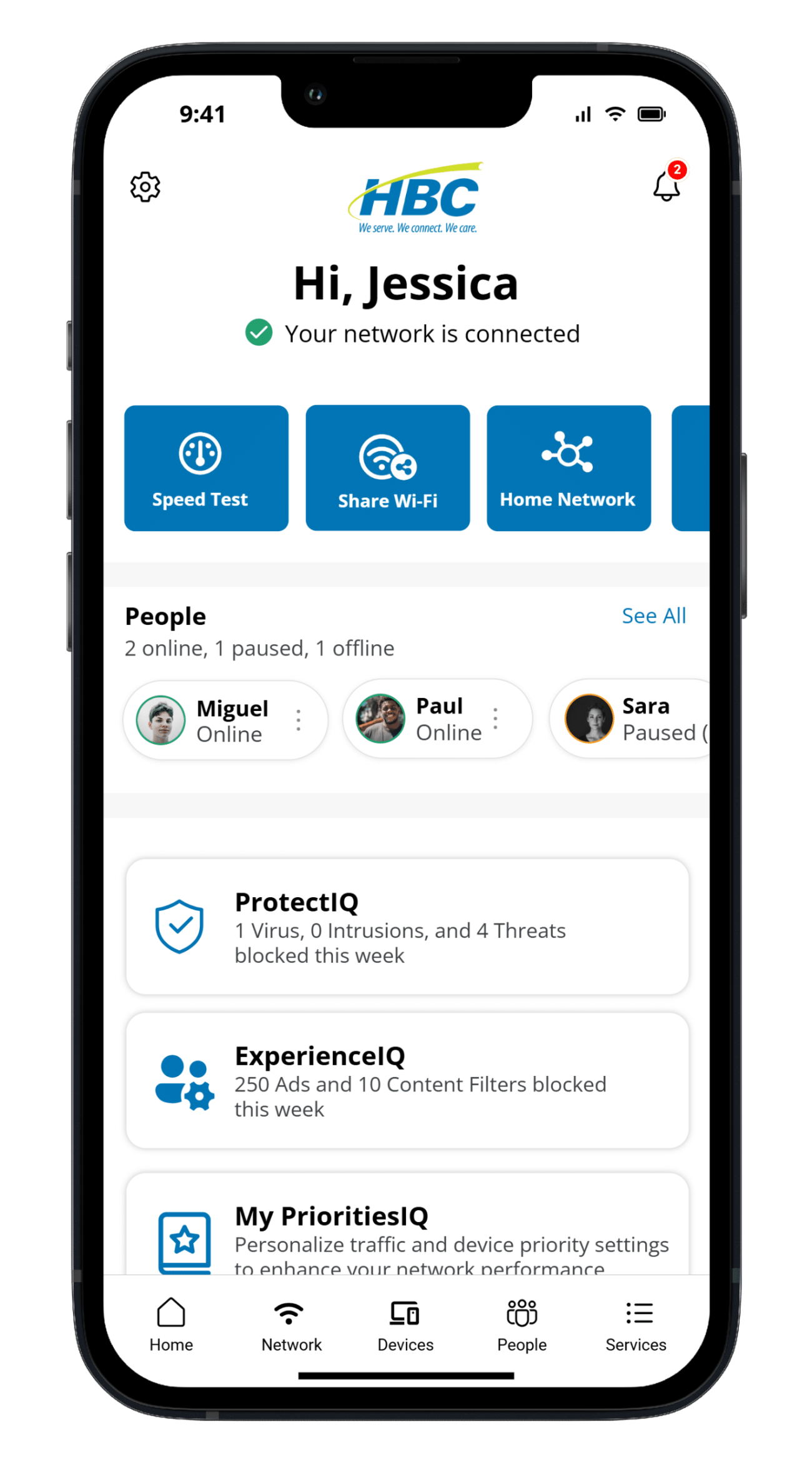
Hbc Gigahome App (Home Screen/Main Dashboard)

ProtectIQ®

The Internet can be a wild place, but ProtectIQ keeps the bad stuff out. This built-in security blocks viruses, malware, and sketchy web threats to keep your family’s devices safe. Tap the ProtectIQ tile anytime to see threats stopped in real time. Three viruses zapped today? You’re welcome. Available as a monthly add-on service.

ExperienceIQ®

ExperiencelQ lets you set content restrictions by age or category (goodbye violent games and online gambling), block specific apps or websites and pause WiFi for bedtime or homework. Safe Search and YouTube restrictions keep searches appropriate and ad-free, too. Available as a monthly add-on service.
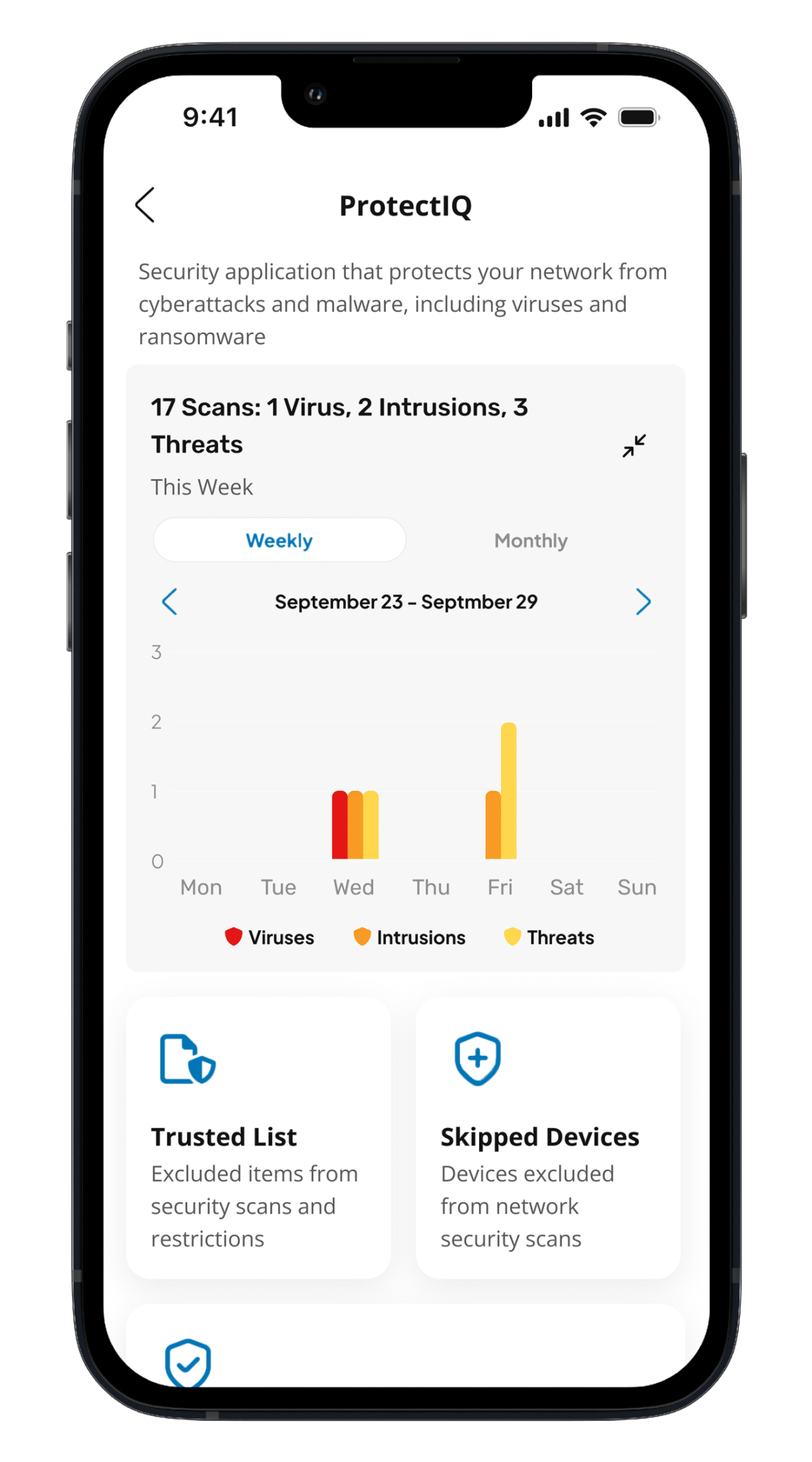
Hbc Gigahome App (Protectiq)

MyPrioritiesIQ

MyPrioritiesIQ is part of ExperienceIQ Enhanced Parental Controls, a subscription feature that lets you optimize your home WiFi by prioritizing bandwidth for what matters most—Gaming, Work, or Entertainment.

Using a simple interface, you can select a mode that fits your current needs:

  • Gaming Mode—Reduces lag for smoother, more responsive play.
  • Work Mode—Keeps video calls and uploads stable during busy hours.
  • Entertainment Mode—Delivers uninterrupted streaming for movies and shows.
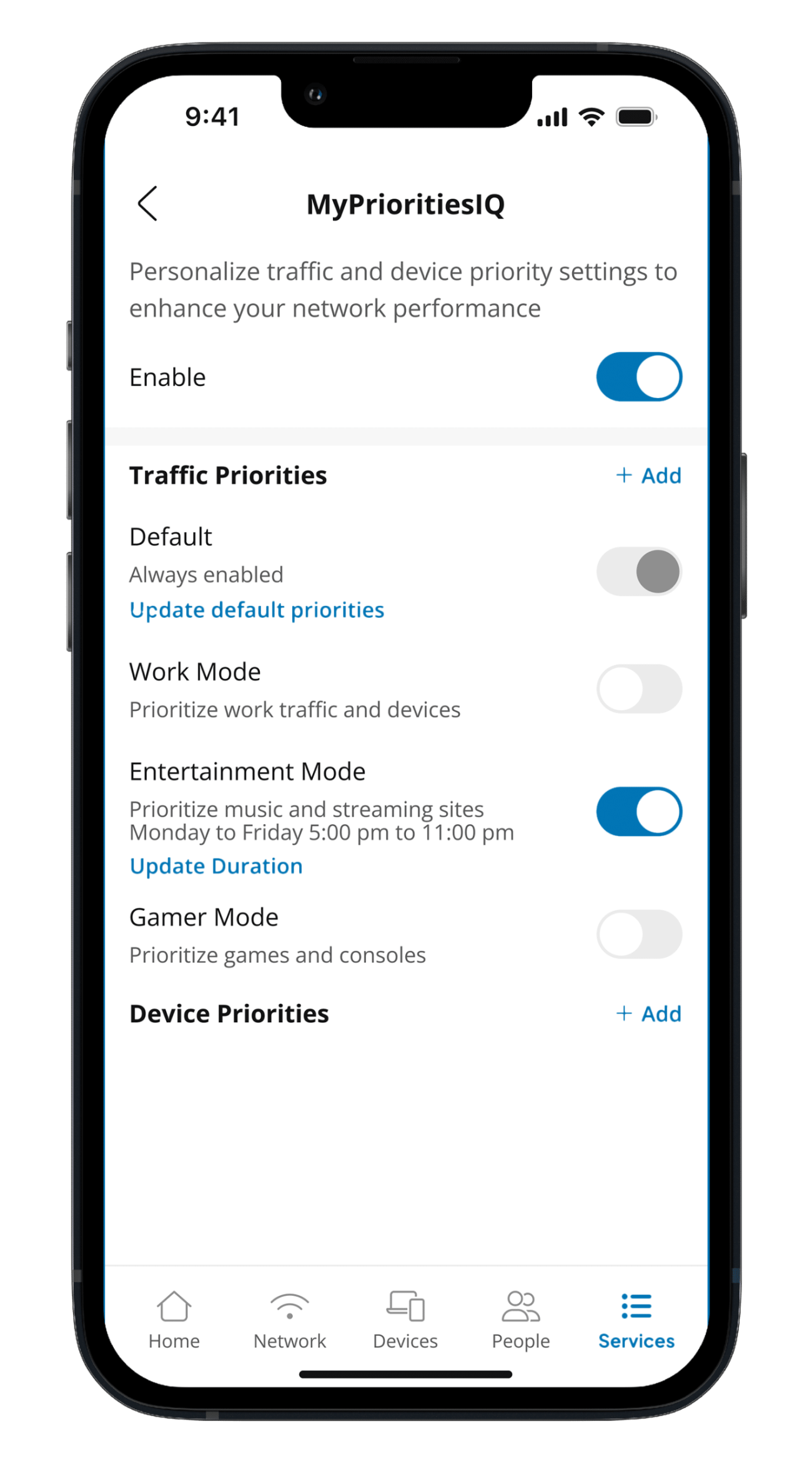
Hbc Gigahome App (Myprioritiesiq)

Bottom Toolbar

Network

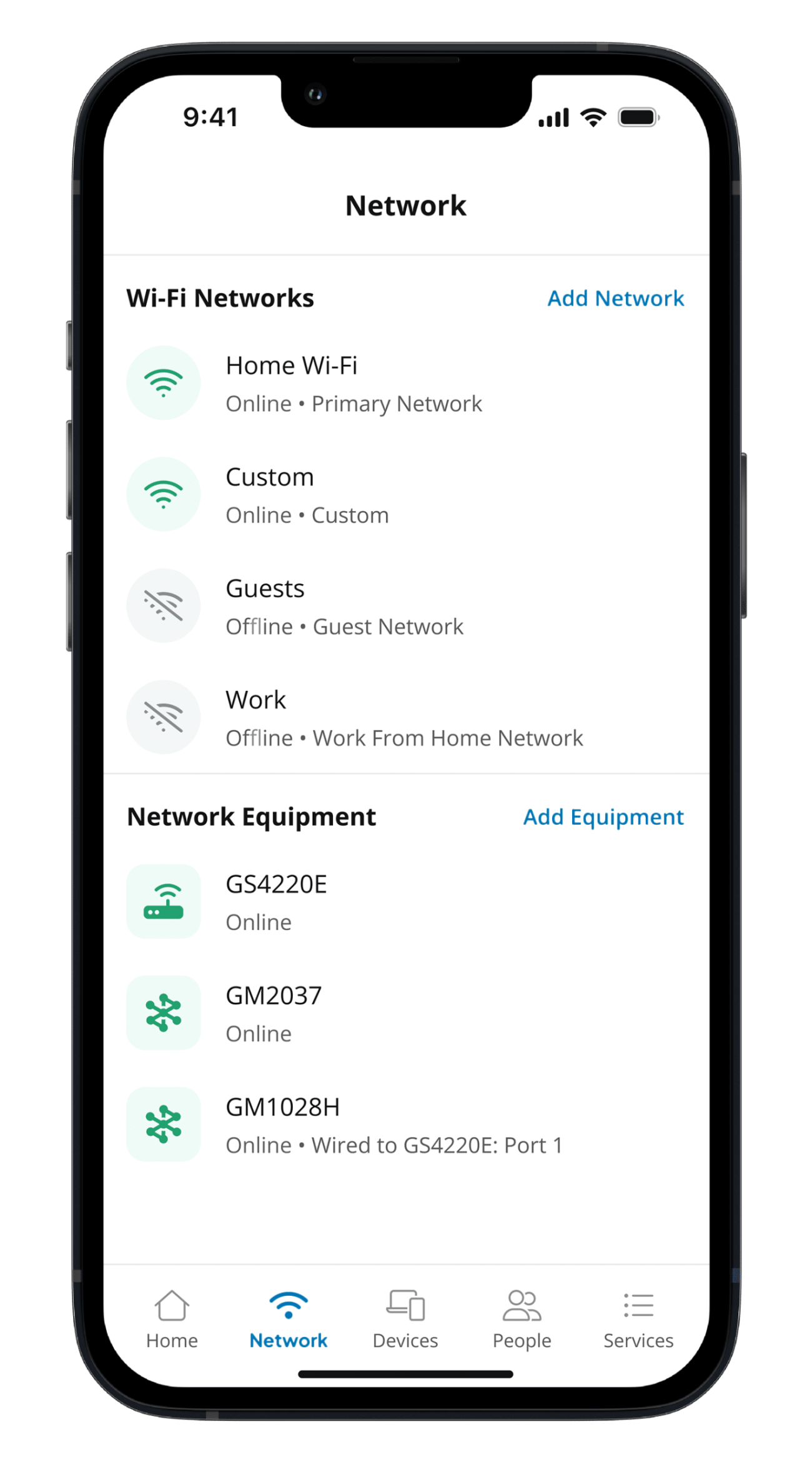
The Network icon opens a detailed view of your home network configuration.

From this screen, you can:

  • View your primary and guest networks.
  • Edit network details like WiFi name (SSID), password, and security type.
  • Add or modify guest networks including password settings and access duration.
  • Manage network equipment.
Hbc Gigahome App (Network)

Devices

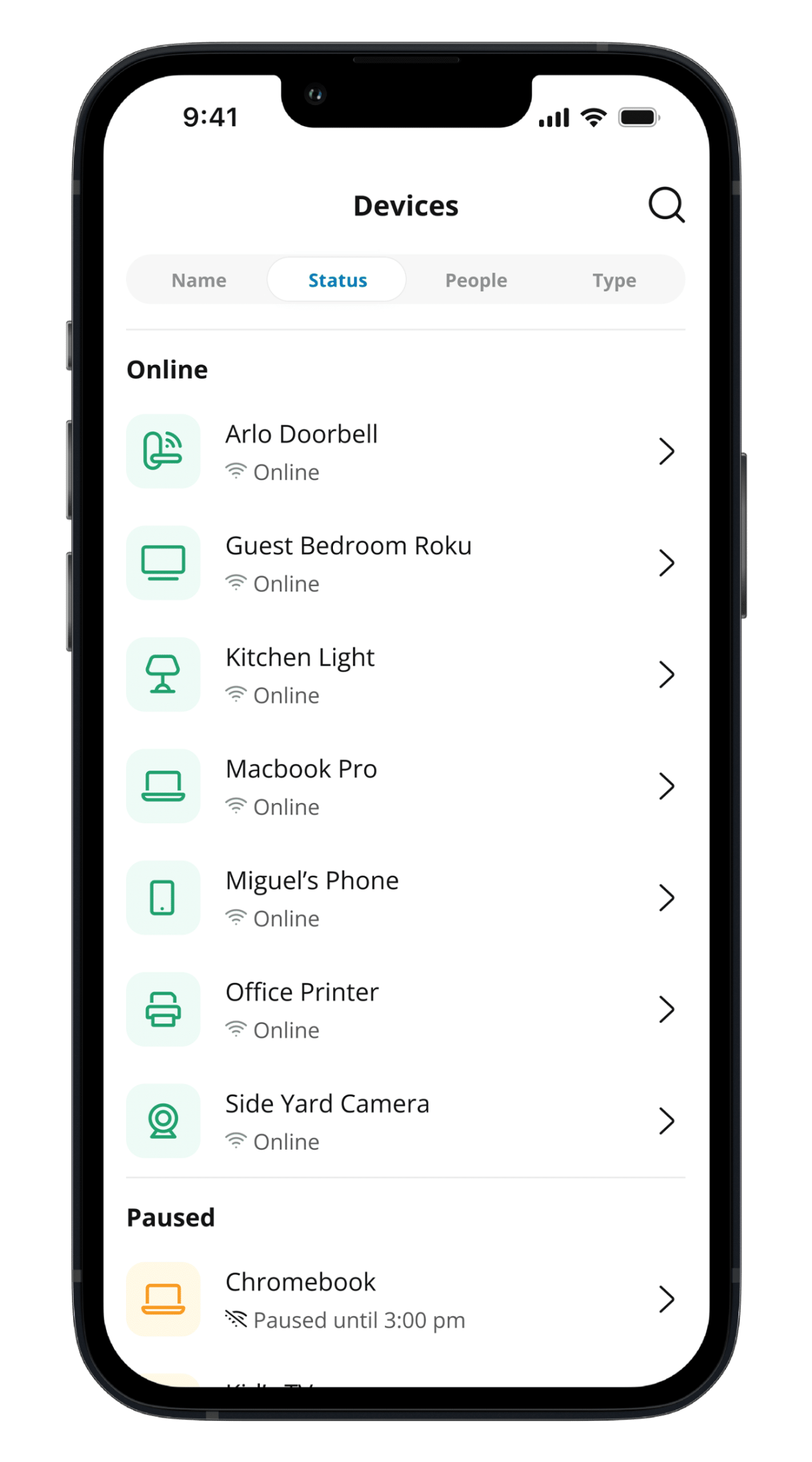
The Devices icon opens a list of all devices connected to your home network. Tap any device to view a data-usage chart showing how much bandwidth it has used over time.

To make devices easier to recognize, tap Edit Details in the upper-right corner to rename the device or change its category.

Across the top, you can also view device Status (online/offline/paused), see which People profiles are assigned to each device, and check its Type category.
Hbc Gigahome App (Devices)

People

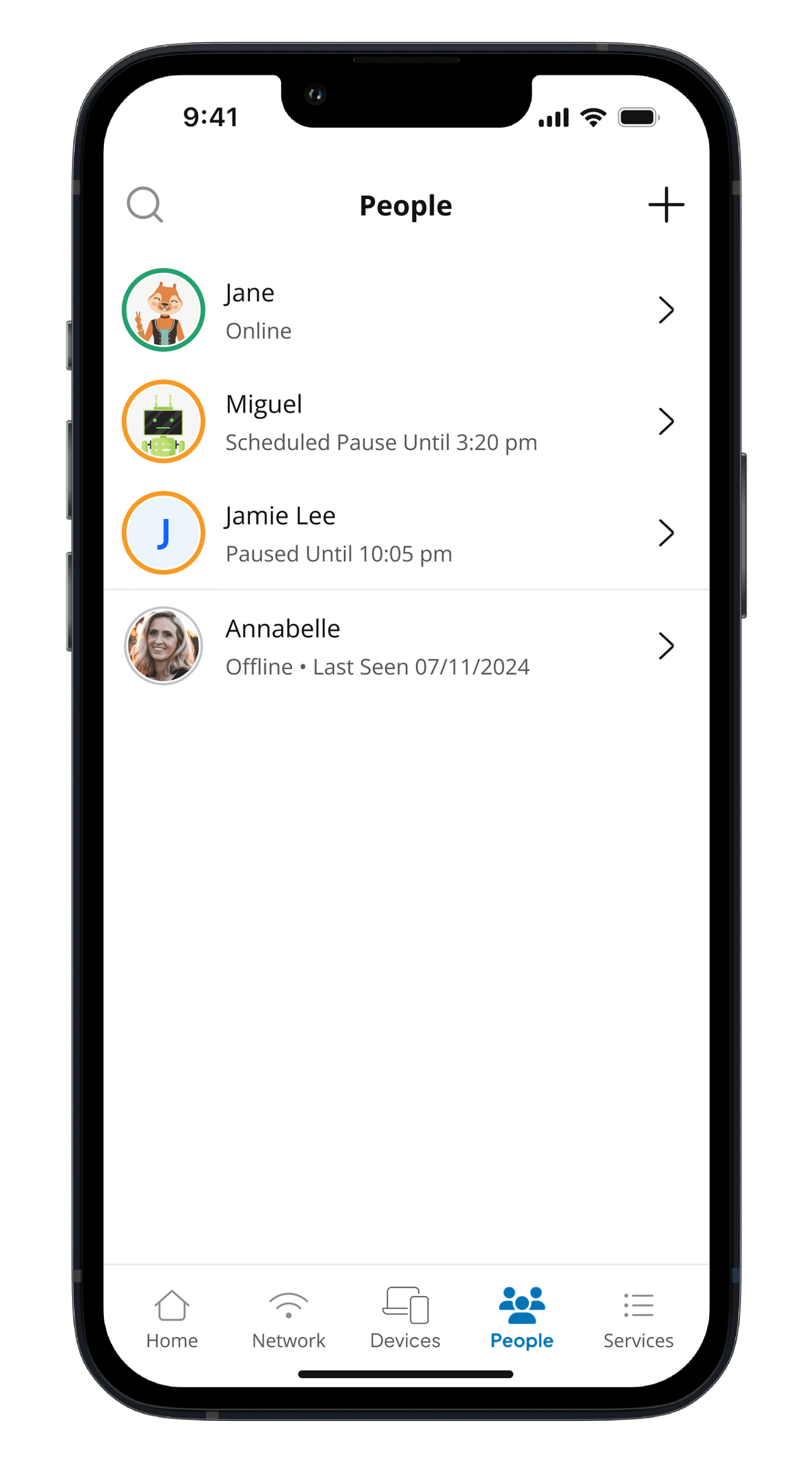
The People icon lets you see who’s on your WiFi and organizes devices by user.

Create People profiles to assign devices—like Haylie’s tablet or Grandpa’s smart TV—and personalize each one with a photo or fun avatar.

From there, you can pause the Internet, manage screen time, or control content access with ease. Keeping your network organized (and freeloaders off) has never been simpler.
Hbc Gigahome App (People)

FAQs

The HBC GigaHome app comes free with your GigaHome router. ProtectIQ Network Security and ExperienceIQ Enhanced Parental Controls require a GigaHome Blast router—ProtectIQ is included, and ExperienceIQ is available for a small monthly fee.

Please contact our Customer Experience Team at (800) 628-1754 with any questions.

Create a guest network in just a few taps—customize the name and password, set how long guests can stay connected, and keep their activity separate from your main network for added security and peace of mind.

To create a guest network:

  1. Open the app and tap Network from the Bottom Toolbar.
  2. Under “Wi-Fi Networks”, select Add Network.
  3. In Network Type, choose Guest from the dropdown menu.
  4. Enter a Network Name (SSID) and Password.
  5. Choose a Security Type (WPA2-Personal is the default and recommended option).
  6. Select how long you’d like the guest network to stay active:
    • Permanent—active until you delete it.
    • Temporary—choose a start and end time.
  7. Tap Save to finish setup.

To share your Guest Network:

  1. From the bottom toolbar, tap Network.
  2. Select your Guest Network.
  3. To connect, guests can either:
    1. Scan the QR code, or
    2. Tap Share to send login details via text or email.

The HBC GigaHome app makes it easy to run speed tests for individual devices, giving you clear insights into WiFi strength, download and upload speeds, and latency. Each device is rate Strong, Good, or Weak, help you quickly identify and resolve any connectivity issues.

To run a speed test:

  1. From the Main Dashboard Quick Links Carousel, tap Speed Test.
  2. Tap Test to start your first speed test, or Test Again if you’ve run one before.

Results are displayed in real time and stored for future reference.

Keep track of who and what’s connected to your WiFi—and take control with just a few taps.

To view and manage connected devices:

  1. Open the app and tap Devices from the Bottom Toolbar.
  2. The Devices screen lists every device currently connected to your network.
  3. Tap a device to view details like data usage and more.
  4. To rename a device or change it’s category, select the hamburger menu (☰), then tap the pencil (edit icon), and complete your changes.
  5. You can also assign the device to a Person Profile (if you’ve created one) to simplify parental control management.

Some devices may not show up if they’re not currently connected, are using a different WiFi network name (SSID), or have been blocked by parental controls. Refresh the device list or restart the app to update your view.

ExperienceIQ gives you control over how your family uses the Internet—set content filters, manage screen time, and schedule offline hours to create a safer, more balanced online experience.

To set up Parental Controls:

  1. From the Bottom Toolbar, tap the People icon.
  2. Tap Add to create a new Person profile or select an existing one.
  3. Assign one or more devices to that person.
  4. Tap the menu icon (☰) in the top-right corner and choose:
    1. Set Time Limits—schedule Internet downtime for bedtime, homework, or family time
    2. Manage Restrictions—control access to apps, websites, and content categories
  5. Tap Save when finished. Your changes take effect immediately.

Tip: Safe Search and YouTube Restriction help block explicit results and remove comments on YouTube videos for a safer browsing experience.

ProtectIQ keeps your home network safe by automatically blocking viruses, malware, and suspicious traffic before it reaches your devices.

To view blocked threats:

  1. From the Main Dashboard, tap the ProtectIQ tile.
  2. You’ll see Virus, Intrusion, and Threats that have been blocked, along with a list of recent security events.
  3. Each entry shows what type of threat was blocked and the date it occurred.

ProtectIQ updates automatically—no action is required to stay protected.

MyPrioritiesIQ helps you get the most out of your WiFi by letting you choose what matters most—Gaming, Work, or Entertainment. This feature, included with the ExperienceIQ Enhanced Parental Controls subscription, automatically prioritizes bandwidth so the activities you care about run smoothly when your network is busy.

How It Works

When multiple devices are online at once, MyPrioritiesIQ makes sure the right activities get the strongest connection. Simply open the app, pick a mode, and your network adjusts instantly to match your needs:

  • Gaming Mode–Reduces lag for faster, more responsive gameplay.
  • Work Mode–Keeps video calls, uploads, and online meetings stable and reliable.
  • Entertainment Mode–Delivers smoother streaming and prevents buffering on your favorite shows and music.

To Use MyPrioritiesIQ

  1. From the Main Dashboard, select the MyPrioritiesIQ tile.
  2. Choose your desired Mode.
  3. Set the duration for your priority using the weekly view, including a start and end time.
  4. Tap Save to apply your preferences.

If you don’t see MyPrioritiesIQ in your app, your current router or service plan may not support this feature. To learn more or add ExperienceIQ, contact our Customer Experience Team at (800) 628-1754.

  • Check your router: Make sure it’s powered on and broadcasting a WiFi signal.
  • Verify your connection: Ensure your mobile device is connected to the correct WiFi network.
  • Restart your router: A quick reboot can often resolve connection issues.
  • Update your software: Make sure both the app and your device’s operating system are up-to-date.

Still not connecting? Our Technical Support team can help—call (800) 628-1754.

For additional help or support contact RS Fiber Technical Support at (800) 628-1754.

Was this article helpful?

Related Articles

Billing Support
SmartHub Billing and Payment
General Support
Channel Lineups
General Information and Billing Handbook
General Installation & Drop FAQ
Internet Handbook
Phone Handbook
Residential Wire Maintenance Plan
Seasonal Billing Program
TV Handbook
Internet Support
Email
Email Settings for Email Clients
Email Through Web Browser
RS Fiber EdgeWave™ Spam Filter
iPhone® Settings for RS Fiber Email
Outlook Email Settings
Thunderbird Email Settings
GigaHome Blast (WiFi 6) Routers
GigaHome Blast u4 Setup
GigaHome Blast u6 Setup
Mesh Setup for GigaHome Blast u4
Mesh Setup for GigaHome Blast u6
GigaHome Gateway Router
GigaHome Gateway Settings
Mesh Setup
HBC GigaHome App
HBC GigaHome App Features and FAQs
HBC GigaHome App Installation
Streaming
Location Errors with Live TV Streaming
Streaming Devices Support
Streaming Services Support
Phone Support
Phone Feature Instructions
Call Management Portal Instructions
Call Management Portal Support Videos
MaX UC Desktop Instructions
MaX UC Mobile Instructions
Virtual Phone
Voicemail & VM2-GO
Call Completion FAQ
Caribbean & NANP Zone 1 Calling Rates
Persons With Disabilities
International Calling Rates
Policies Support
Policies & Procedures
Broadband Internet Service Disclosure
Cable Subscriber Privacy Notice
Caller ID Spoofing
Commercial Acceptable Use Policy and Customer Agreement
CPNI Opt Out Information
CPNI Privacy Information
DMCA (Digital Millennium Copyright Act) Counter Claim
DMCA (Digital Millennium Copyright Act) Policy
E911 Battery Backup Policy
E911 Service
FCC Emergency Alert System (EAS) Mandatory Accessibility Notice
Identity Theft Notice
Internet Acceptable Use Policy
MN Relay Annual Customer Notice
National Do Not Call Registry
Network Management Policy
PBX Hacker Notice
Rented Equipment Acknowledgment
Residential Acceptable Use Policy and Customer Agreement
Telephone Assistance Plan & Federal Lifeline Program
Toll Fraud Policy
Public Information
711 for Telecommunications Relay Service
Accessibility to Emergency Information on Television
Internet Protocol (IP) Relay Service
Minnesota Relay
Minnesota Telephone Discounts Brochure
Telecommunications Relay Service—TRS
Video Relay Service—VRS
Voicemail System Hacking
VoIP and 911 Service
TV Support
Channel Lineups
Channel Lineup
HBC+ Video App Channel Lineup
HBC+ Video App
HBC+ Video App Installation & User Guide
HBC+ Video App Troubleshooting Guide
Pontis Box Troubleshooting Guide
Whole-Home DVR
Whole-Home DVR
Parental Controls
Parental Controls Instructions
Remotes
Amino Willow Remote
PHAZR-5 Remote
Titan Remote
Streaming
Location Errors with Live TV Streaming
Streaming Devices Support
Streaming Services Support
TV2-Go
TV2-Go Instructions